

Galaxy Watch Ultra 2 & Watch 9 — Charging Guide
DockCharger® Quick Guide
Charge your Galaxy Watch Ultra 2 or Watch 9 — without the frustration
The Galaxy Watch Ultra 2 is the watch we get asked about most. It's brilliant — and also the pickiest watch to charge. Here's how to get a rock-solid connection every time, in under 30 seconds.
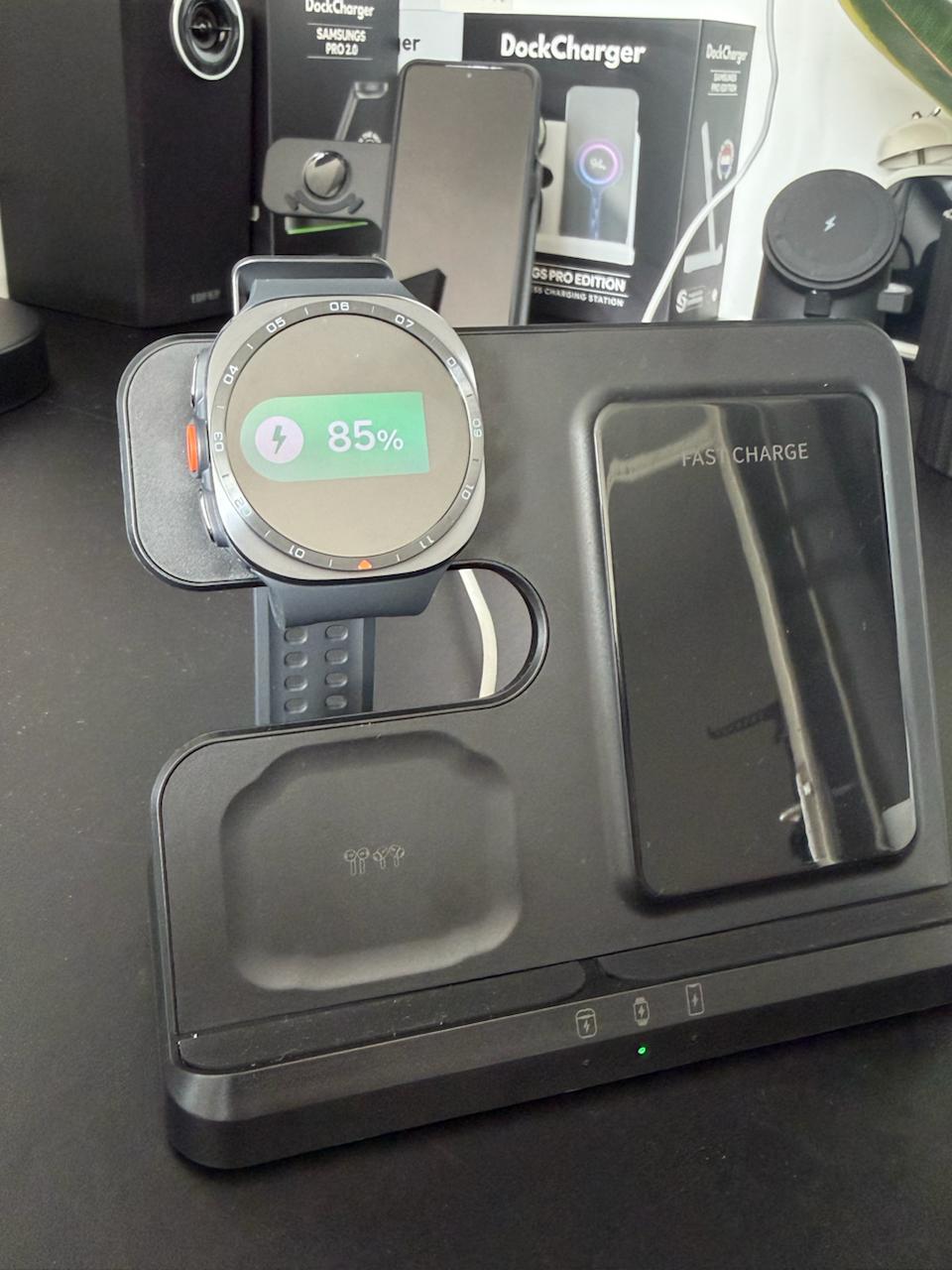
How wireless charging works — in 10 seconds
Wireless charging uses two coils: one inside the dock, one inside your watch. When they line up and sit close together, power flows between them through a magnetic field — no cable needed.
Think of it like two magnets that need to snap together. If they're even slightly off-centre — or there's a gap between them — the power can't flow, and your watch won't charge. That's the whole story behind every tip on this page: position is everything.
Why this watch is picky
Samsung redesigned the back of the Galaxy Watch Ultra 2 and Galaxy Watch 9. The sensor array now sits deeper, the housing around it is raised, and the internal charging coil sits further from the surface.
That means the watch needs to rest perfectly flat and firmly against the charging pad. Even a small gap — or the watch tilting away under its own weight — is enough to stop charging before it starts. Or worse: it starts, and then silently stops after a few seconds.
And the Ultra 2 is heavy. Left to itself, it wants to slide or tilt downwards — away from the exact spot where the coils connect. The fix is to make the strap do the work for you.
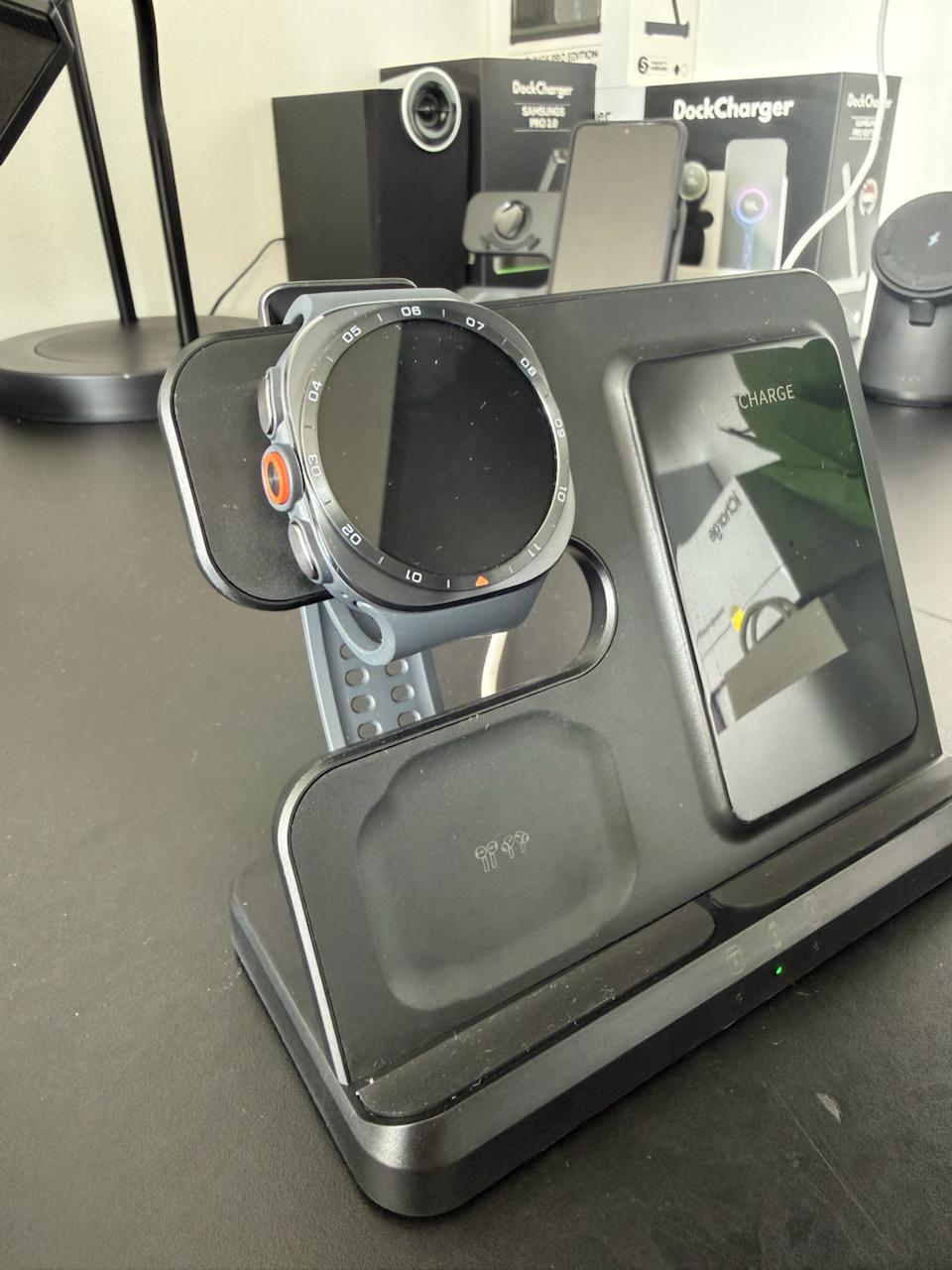
✕ LOOSE STRAP
The watch tilts away — a tiny gap breaks the connection.
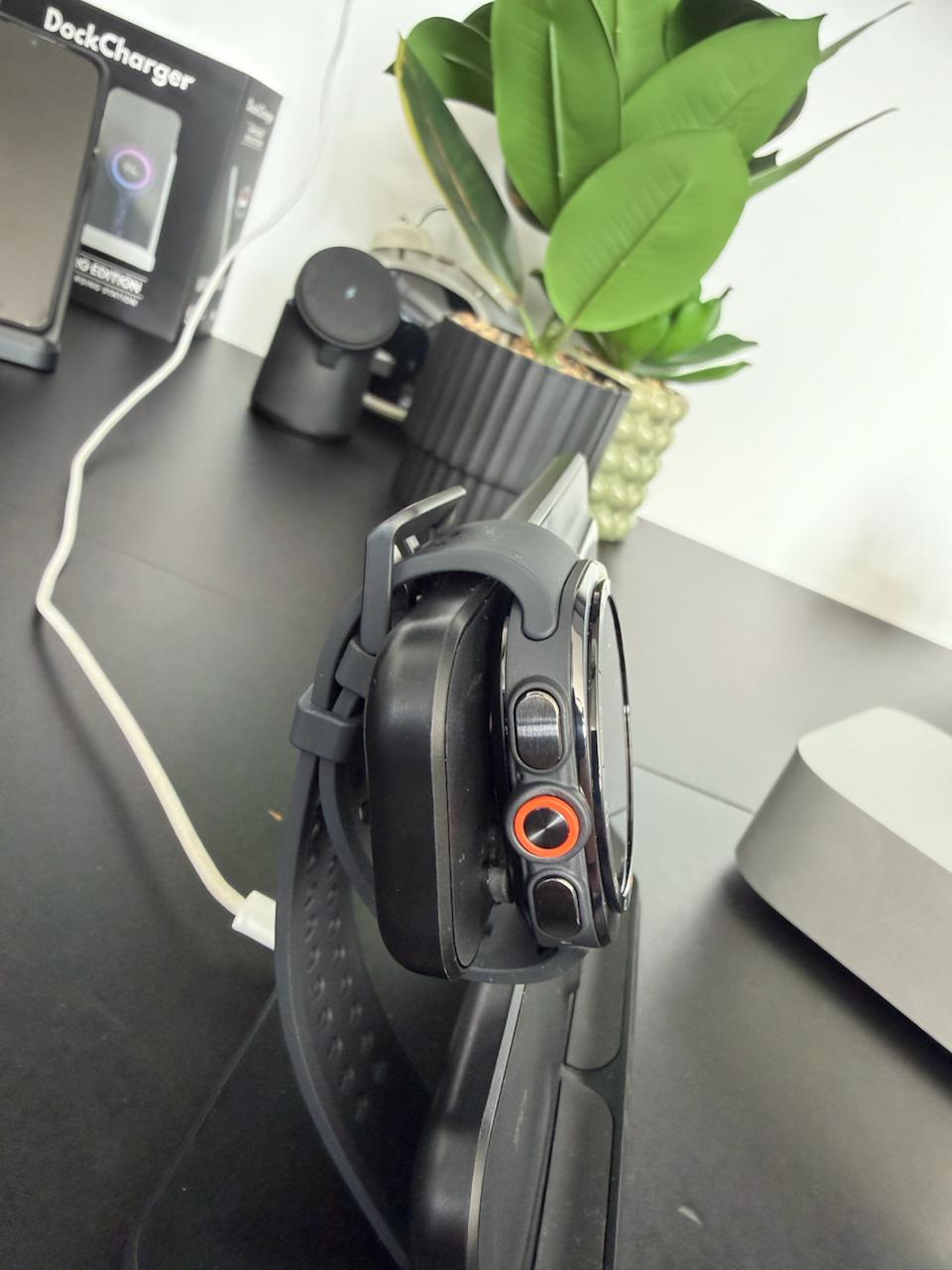
✓ STRAP FASTENED
Snug against the pad, no visible gap — the coils connect every time.
The 30-second fix
Use the strap itself to lock the watch in place. Make it as tight as possible, slide the watch onto the dock, then fasten the loop around the cradle — the watch pulls itself snug against the charging surface and stays there.
Tighten the strap as tight as possible
Close the strap on its tightest hole — as tight as it goes before you put the watch on the dock. A loose strap lets the watch tilt away from the charging surface — this single step fixes most "it won't charge" reports.
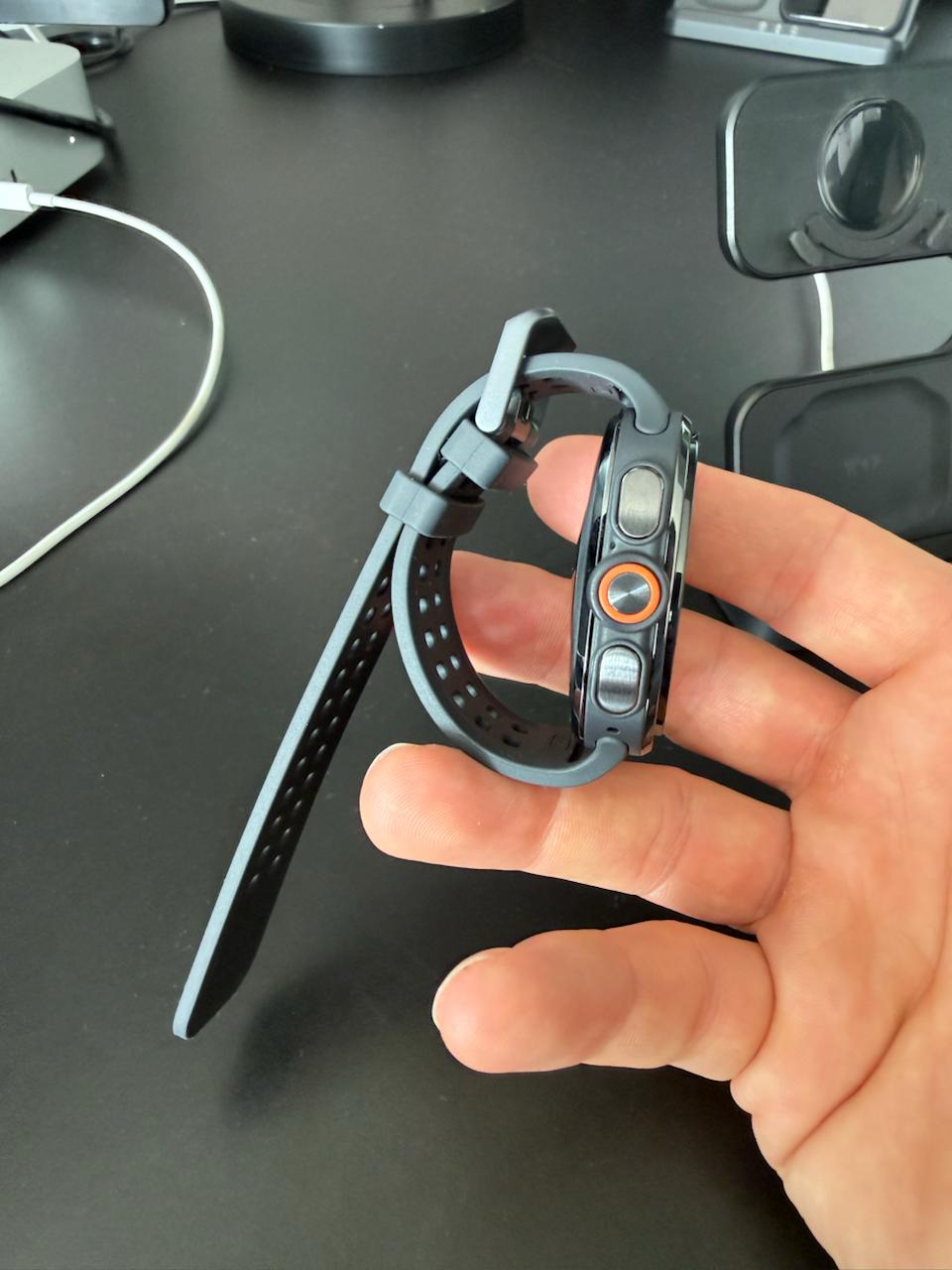
Slide the watch onto the dock
Sensor side down, slide it onto the dock until it sits flat against the charging pad, centred on the cradle so the coil in the middle of the sensor array lines up with the pad.
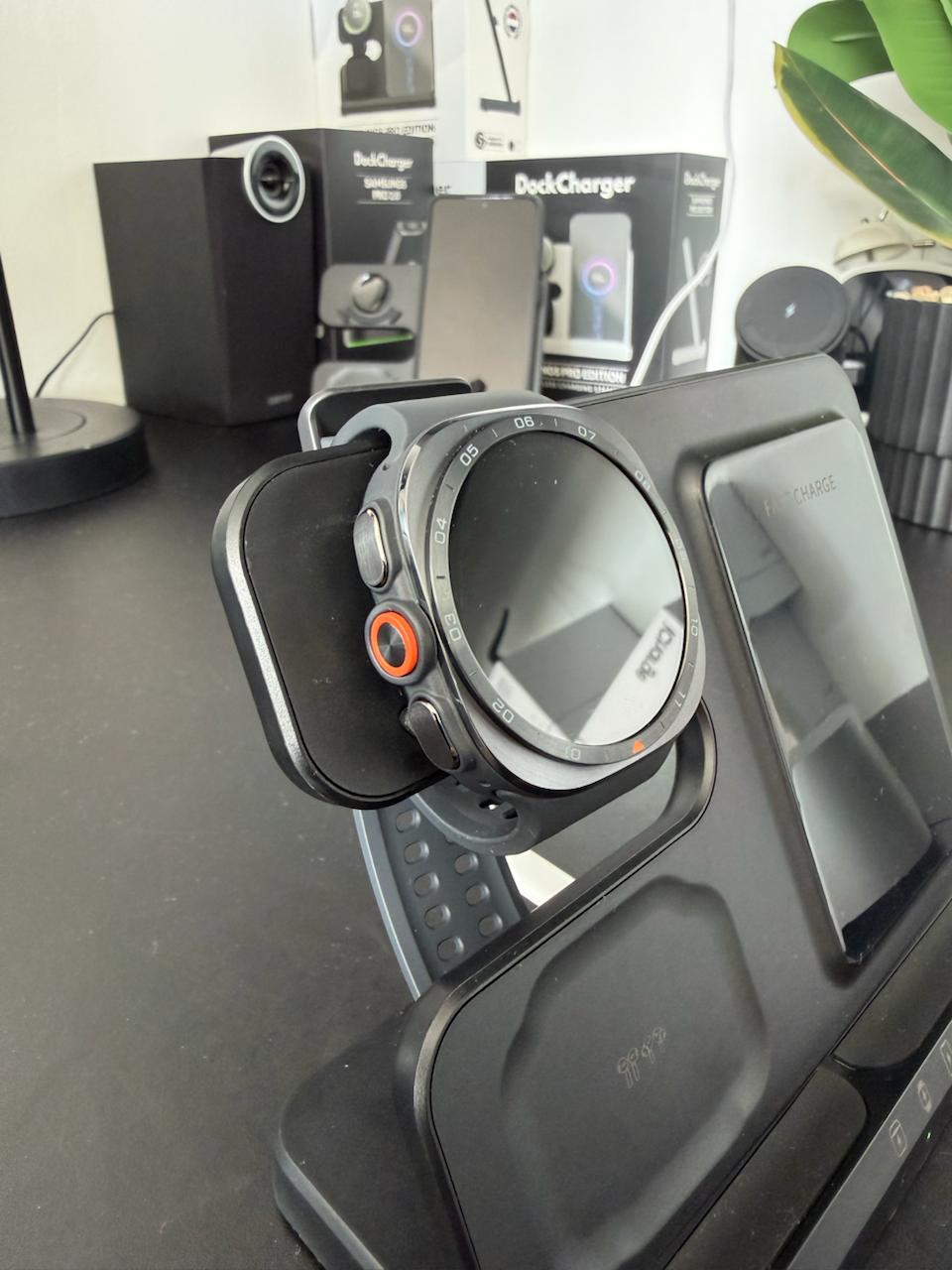
Fasten the strap around the cradle
Wrap the closed strap loop around the back of the cradle arm. It should pull the watch snugly against the charging surface — no visible gap, no wobble.
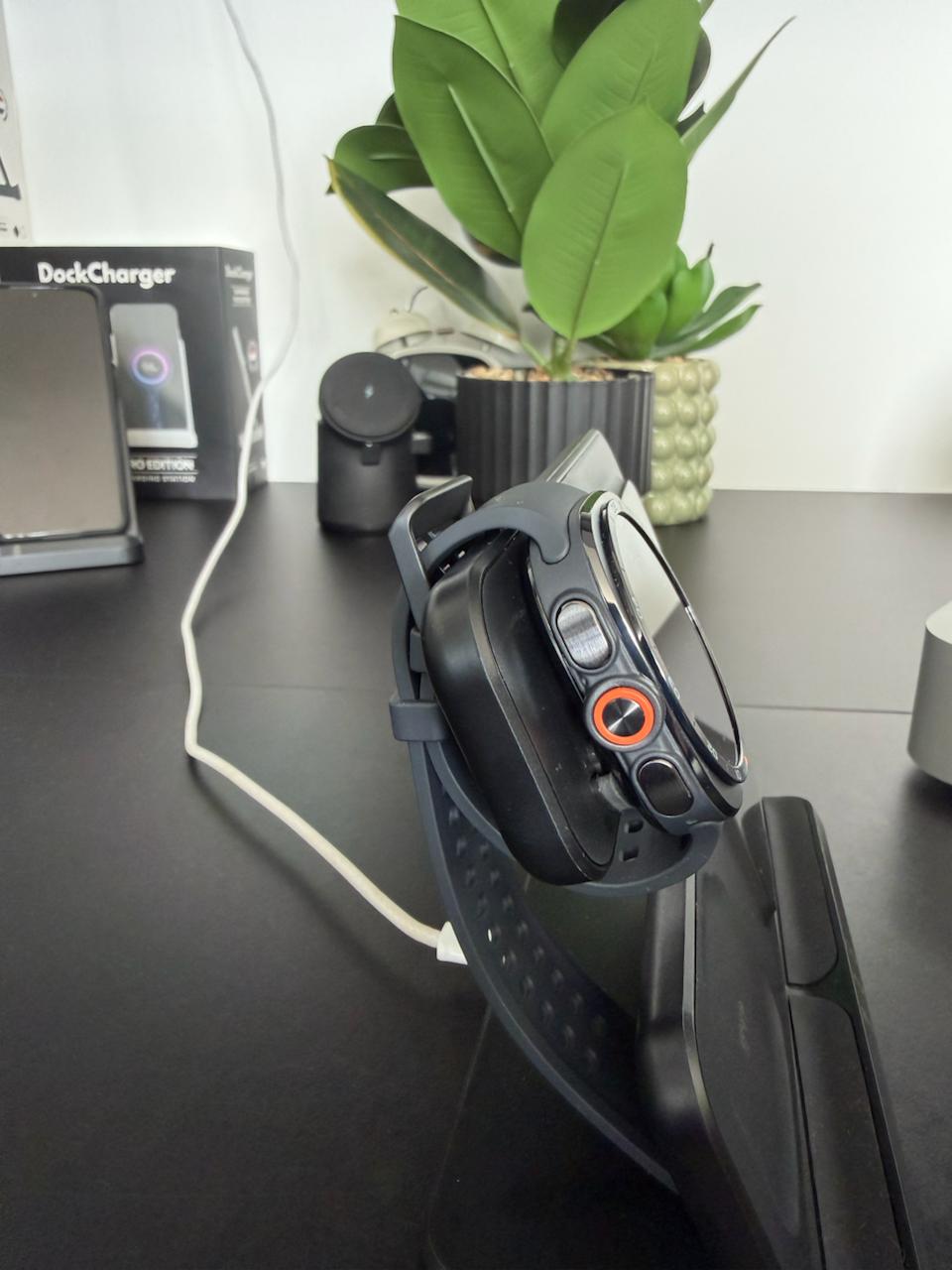
Check the screen — and the dock's light
Charging has started when the battery percentage and the lightning icon appear. Nothing within about five seconds? Nudge the watch slightly and try again — it usually just needs to settle into the exact spot.
Watch it in action
Two quick clips — the right way (strap tight) versus the classic mistake (strap loose).
What the dock's status light tells you
● GREEN LIGHT
The watch is lying flat and centred. Charging is working.
▲ ORANGE / YELLOW TRIANGLE
The dock sees the watch, but it's not lying flat on the pad. This is not a fault — just tighten the strap or nudge the watch slightly until it sits flat.
In short: an orange light doesn't mean your dock is broken — it's the dock telling you the watch isn't quite straight.
Good to know
The Galaxy Watch Ultra 2 — like the Watch 7, 8 and 9 — does not support reverse wireless charging (Wireless Power Sharing) from a phone. Samsung increased the distance between the rear glass and the coil on these models, which is exactly why precise positioning matters. On a dedicated dock like the DockCharger, the four steps above are all you need.
Still not charging?
Run through this checklist — it solves nearly every case:
Centre the watch. Off-centre placement is the single most common cause of a watch that won't charge. If the orange triangle is showing, the watch isn't flat — nudge it until the green light comes on.
Remove any case, cover or sticker from the back of the watch — anything between the watch and the pad blocks the signal.
Clean the back of the watch and the pad. Dust and skin oil reduce contact and can break the connection.
Use the DockCharger PD+QC Ultra adapter supplied in the box — a weaker adapter may not power three devices at once.
Charging starts and then stops? The connection is loose — tighten the strap one more hole and reseat the watch.
Still stuck?
Contact us via the Help Center and include a photo of your watch on the dock — we'll get you charging in minutes.
Open the Help Center